Teams
A team groups students and the users who look after them, e.g. "Juniors" or "Masters". Events and timetable slots are planned for teams: their students appear on the attendance list automatically.
Create a team
- Open Teams.
- Enter the name in New team name.
- Optionally choose a Parent team (see below).
- Choose Add Team.
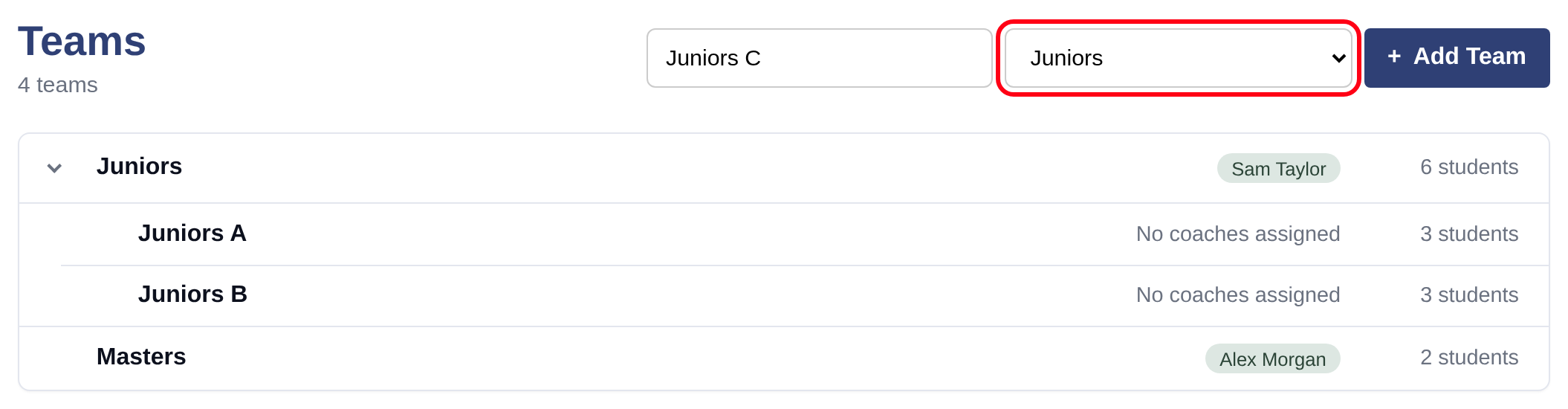
The list shows each team with its users and its number of students.
Teams within teams
A team can have a parent team, so the teams form a tree: "Juniors A" and "Juniors B" belong to "Juniors". This helps when a group trains together sometimes and in smaller groups at other times.
Membership is passed up the tree, never down:
- a student of "Juniors A" is also a member of "Juniors", so they are on the attendance list of every "Juniors" event;
- a student added to "Juniors" itself is not a member of "Juniors A".
Add students to the most specific team they belong to. The parent team then includes them automatically, each student only once. The team page shows the child teams and, for each inherited student, the child team they come from.
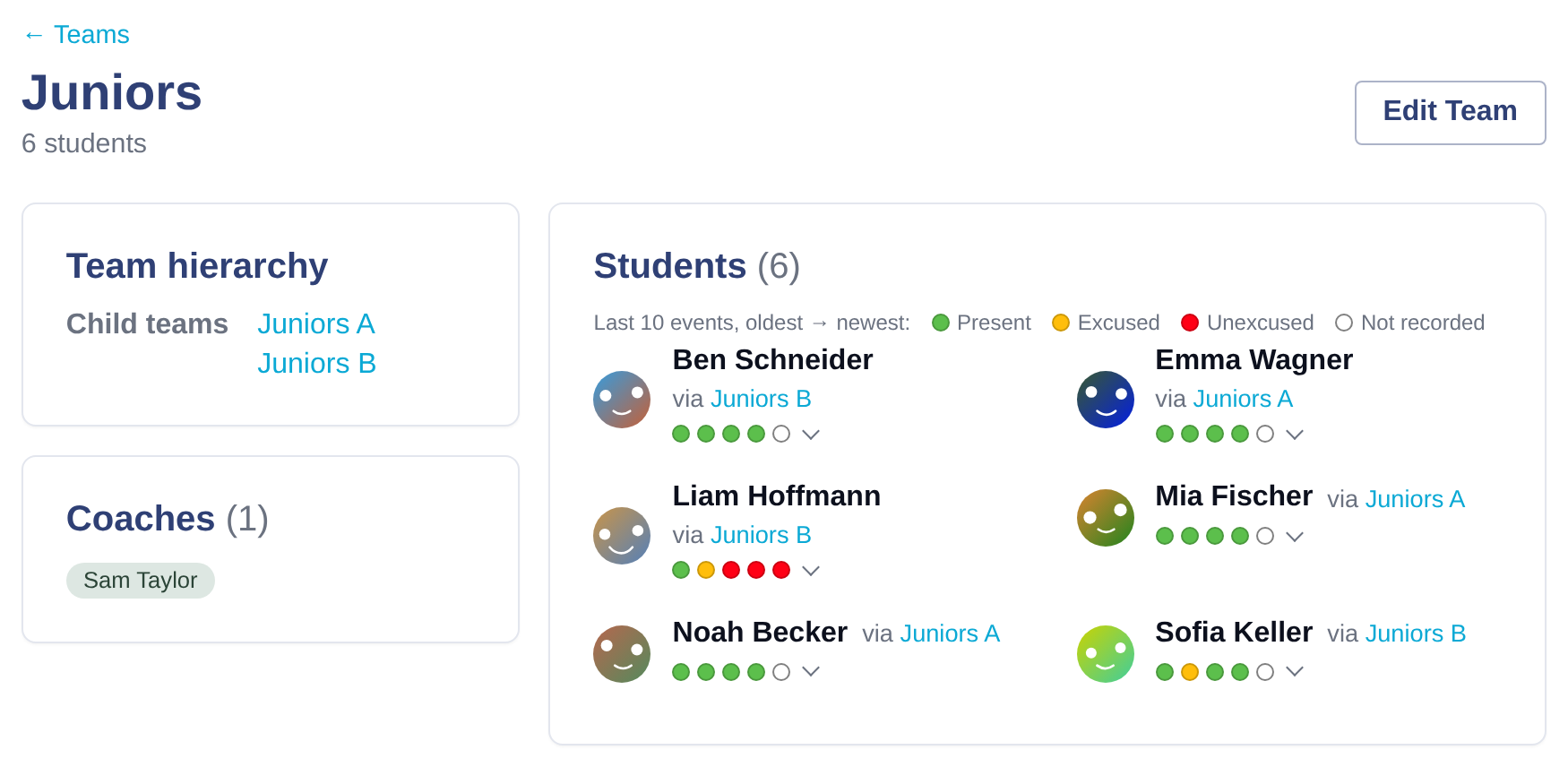
Use the arrow in front of a team in the list to show or hide its child teams. Lists where you pick a team show the full path, e.g. "Juniors › Juniors A".
Recent attendance on the roster
The team page lists the team's students, direct and inherited. Next to each student, a row of dots shows their last 10 events, from any team, oldest on the left:
- green: present;
- yellow: excused;
- red: unexcused;
- grey outline: on the attendance list, but nothing recorded yet.
So you notice a student who starts missing events, suddenly or bit by bit, without opening every student. A legend above the roster explains the colours, and hovering over a dot names the event, its date and the status. Click or tap the dots to open the events as a list, newest first, with links to the events and to the student's full attendance history.
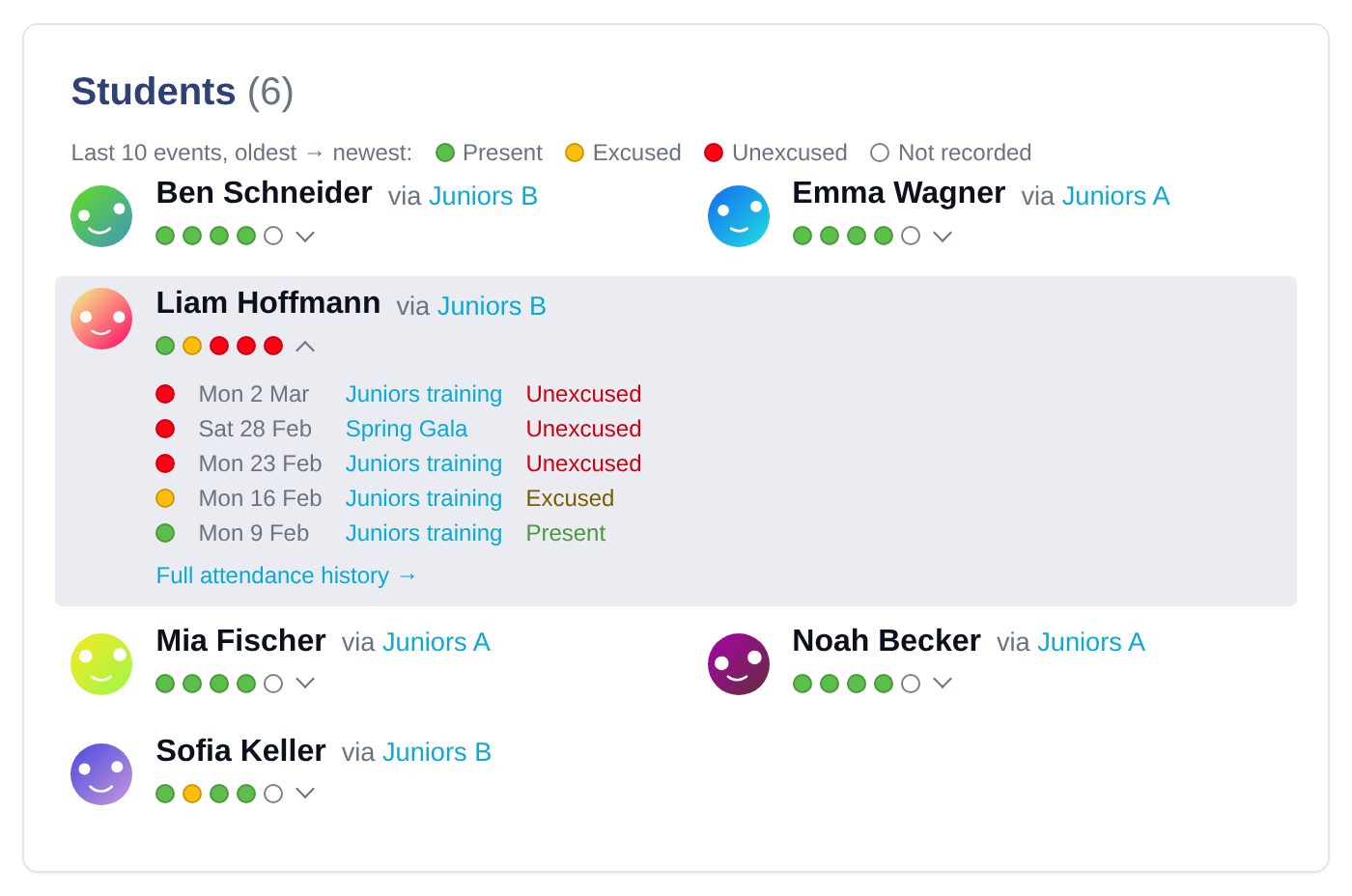
Inherited students show via and the child team they come from. A student without events shows No events yet..
Change or delete a team
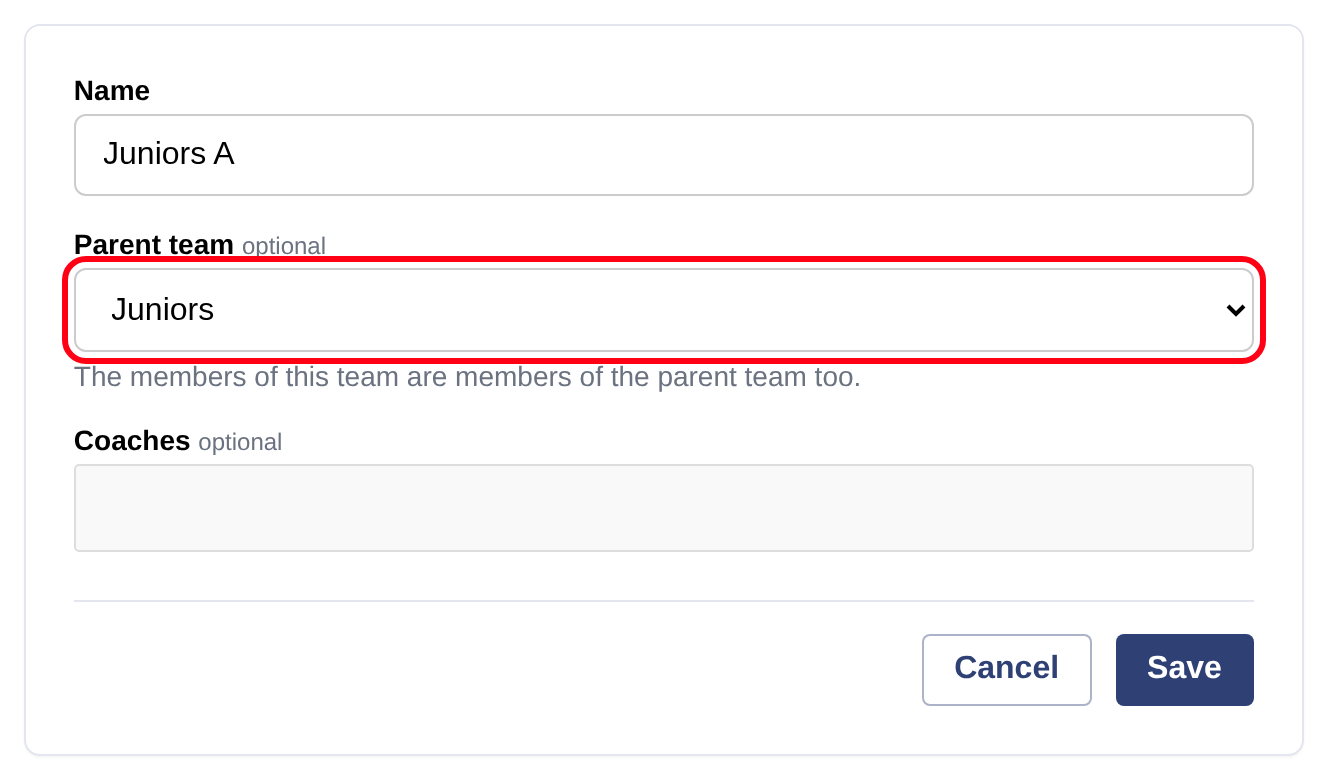
On the team page, choose Edit Team. There you can rename the team, move it to another Parent team (or to the top level with No parent team) and choose its users under Coaches.
Students join and leave teams on their own page, see Students.
Delete Team removes the team from lists and new events. Its child teams move up one level, to the deleted team's parent. Past events and their attendance stay.
See also
- Students – Keep your students' details, teams and contact details, track trial students, record absences and archive students who have left.
- Timetable – Define your weekly trainings once, with their teams and users, and create events from them in the calendar.
- Record attendance – Mark students present, excused or unexcused at an event, and spot students who keep missing.