Record results
A result is one value a student achieved for one metric at one event, e.g. 1:04.34 over 100 m freestyle. Open the event; its Results offer three ways to record them.
Quick entry: one metric, the whole group
Made for the poolside or track: choose Quick entry, then the metric. TeamKit lists the students on the event's attendance list, the others folded away under Other students.
Type a value and press Enter (or "next" on the phone keyboard): the row is saved and the next student is up. Each row shows the student's personal best and, after saving:
- 🏅 a new personal best;
- ⚠ a value far from the personal best: a likely typo or wrong unit. It is saved all the same, so correct it if needed.
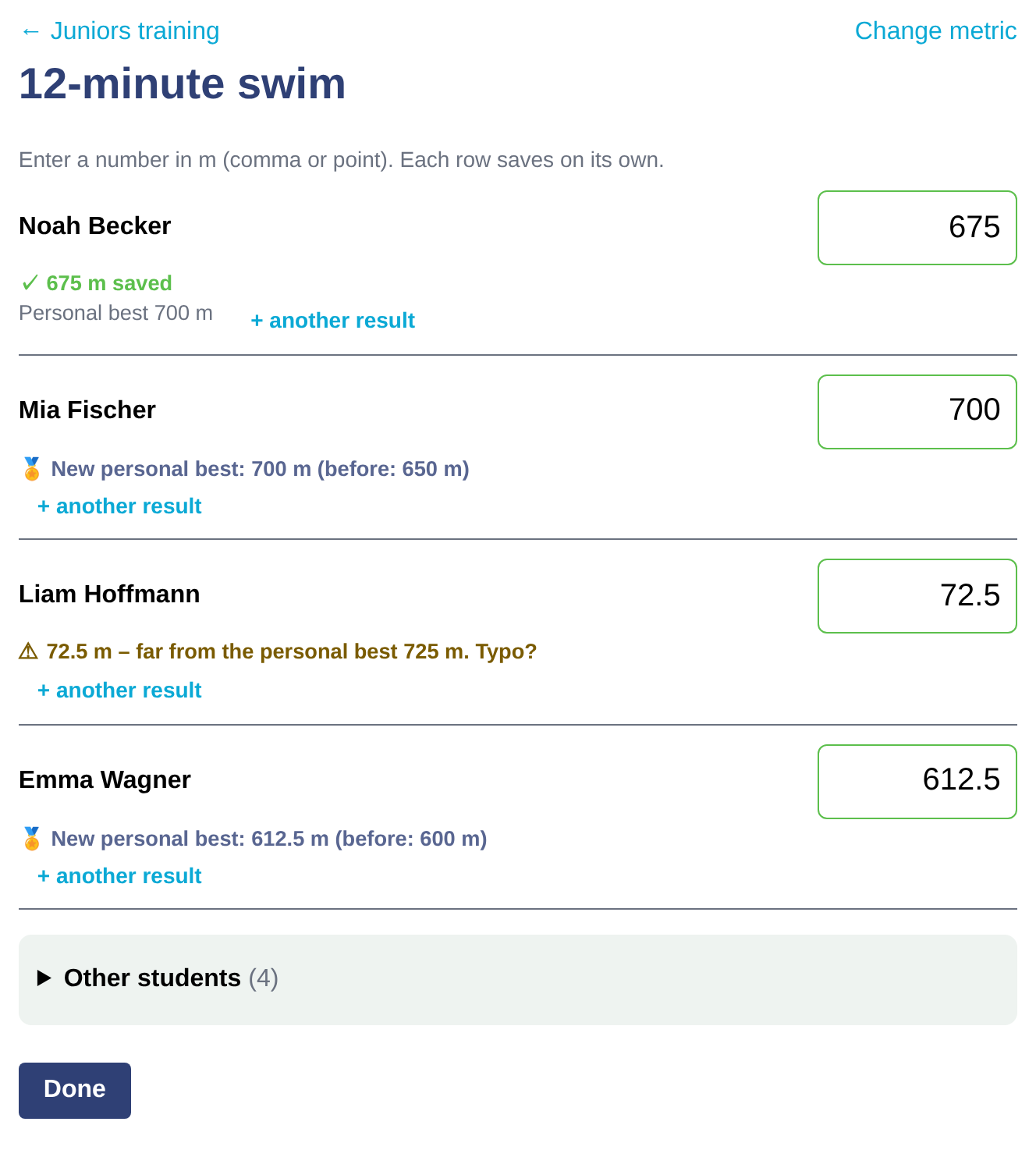
On a phone keyboard without a colon, type times with dots: 1.04.34 means
1:04.34. For a second attempt of the same student, choose
+ another result. Changing a saved value corrects it; clearing it
deletes the result. Choose Done when finished.
One by one, with splits
Record one by one (with child results) records a single result with all its details: choose the student, the metric and the value. For metrics with splits, attempts or halves, a row per position appears; fill in the ones you know and leave the rest empty.
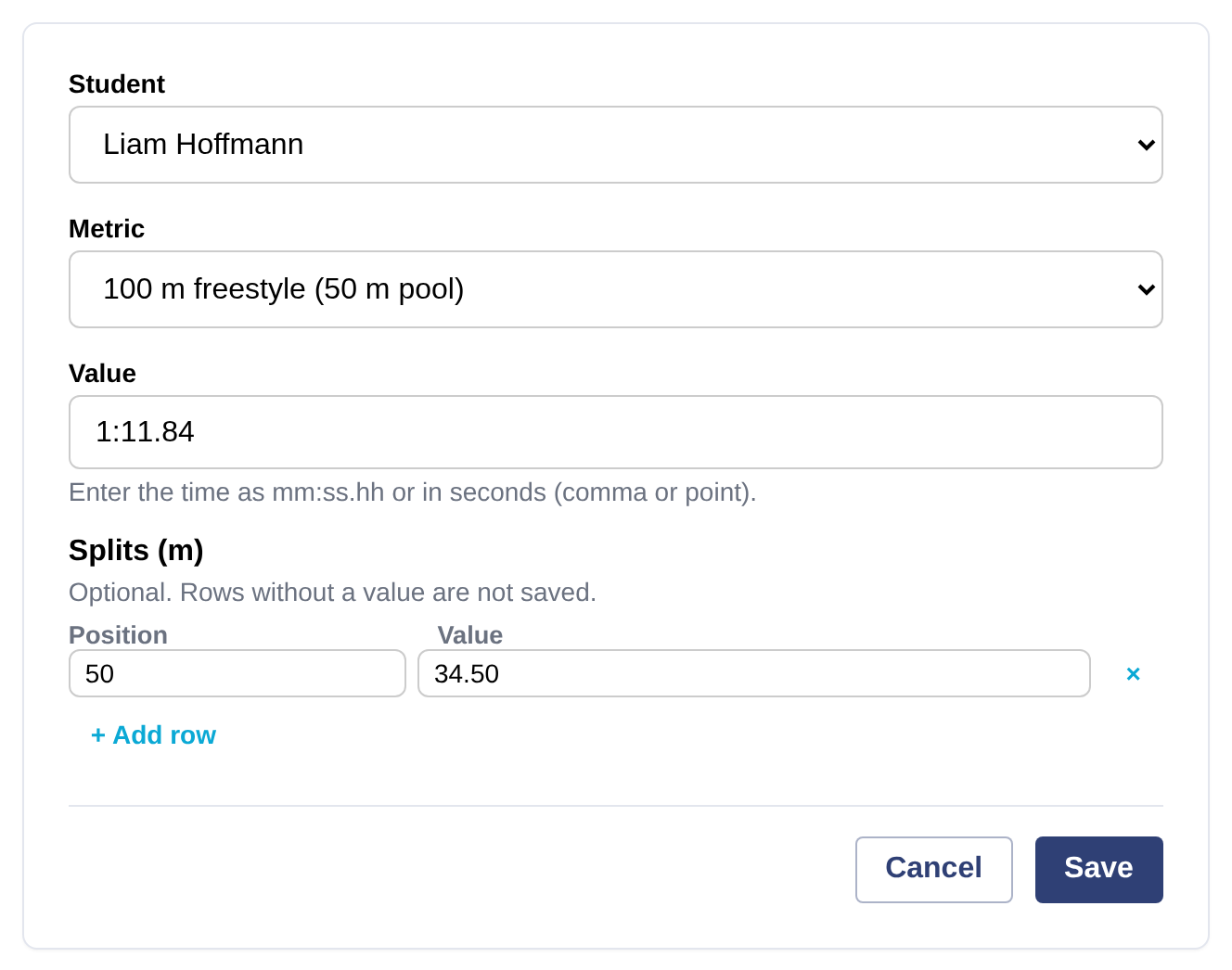
Any student of the organisation can get a result, also one who is not on the attendance list. Recording a result does not record attendance.
To correct or delete a result, choose it in the event's results.
Lap counter
To count laps for many students at once, e.g. in a 12-minute swim, use the lap counter. It saves each student's distance as a result.
A student's progress
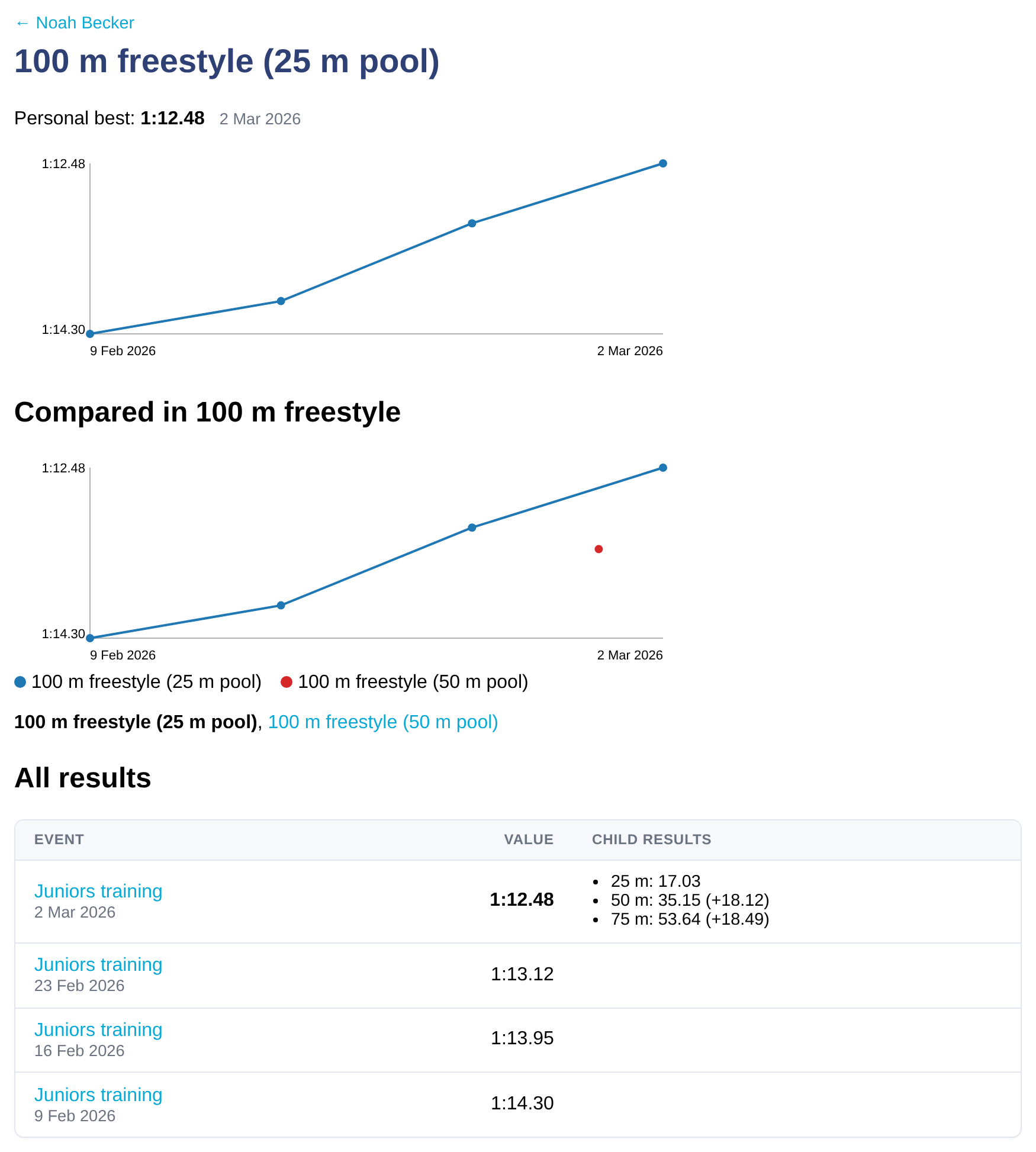
The student page lists every metric they have results in, with their personal best and its date. Choose a metric to see a chart of all results over time, one chart per comparison group, and all results with their splits.
See also
- Sports and metrics – Define what you measure, with units, direction and splits, and group metrics that can be compared.
- Lap counter – Count the laps of many students at once on your phone and save their distances as results.
- Import results – Bring results from spreadsheets, other apps or swim meet software into TeamKit.