Students
Students are the people in your teams who take part in events. They have no account of their own: you keep their details for them.
Add a student
- Open Students and choose Add Student.
- Enter the First Name and Last Name. The Birthday and the Teams are optional but useful: the birthday shows on the calendar and on attendance lists, the teams put the student on the attendance lists of their events.
- Choose Add Student.
Choose only the most specific teams: a student of "Juniors A" is a member of its parent team "Juniors" anyway (see Teams). The student's page lists both, marking "Juniors" with (through a child team).
Trial students
When someone wants to try out before joining, tick Trial student when you add them. If they show up at an event, add them right there with Quick add student (see Record attendance).
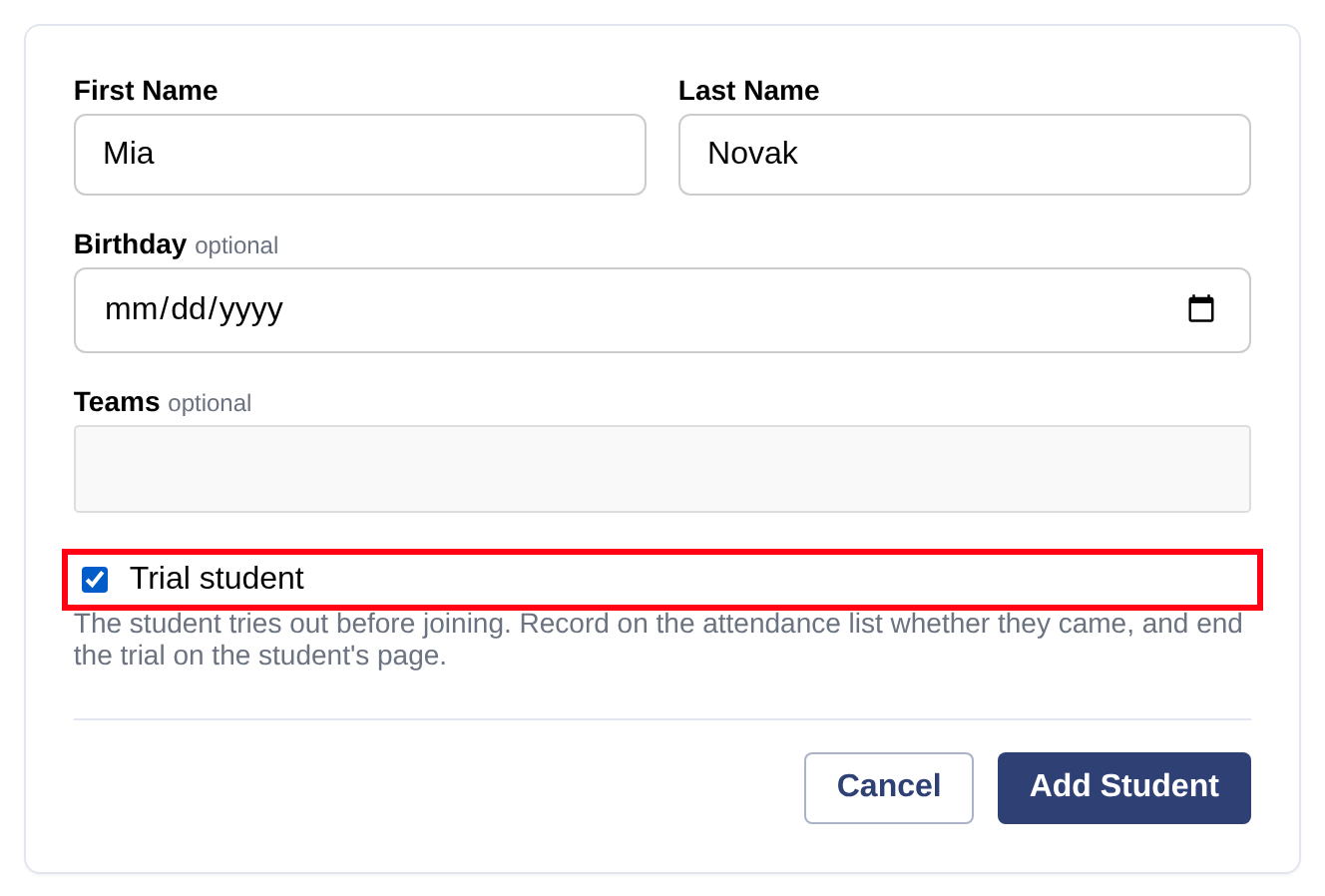
A trial student is a normal student: add them to a team, and they are on the attendance lists of its events, or add them to a single event. Marking them present or unexcused records whether they came. They are marked Trial on attendance lists, the student list and team rosters, Trial students only in the student list shows only them, and the dashboard lists all current trial students.
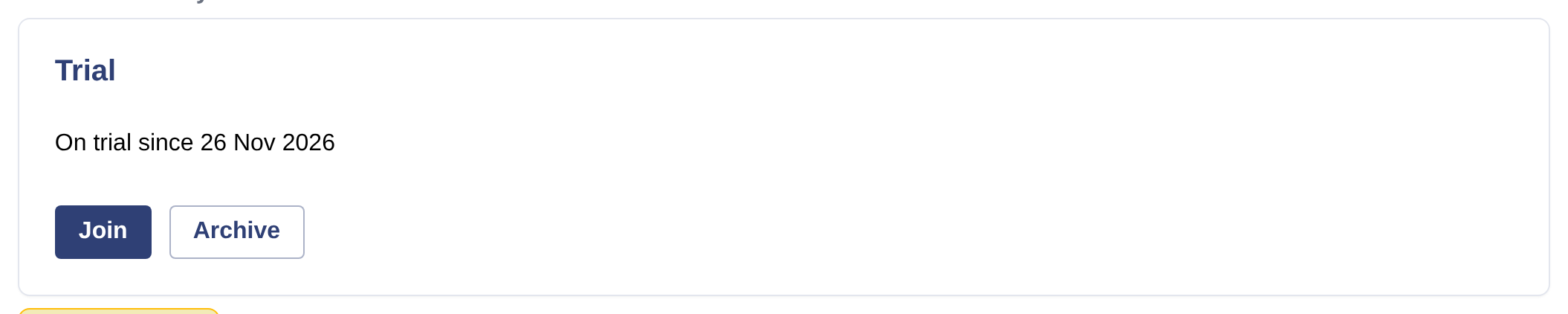
The student page shows since when the student is on trial. When the trial is over, choose:
- Join if the student joins: they become a regular student.
- Archive if they do not: the student is archived. Delete them afterwards if you do not want to keep their details.
Find students
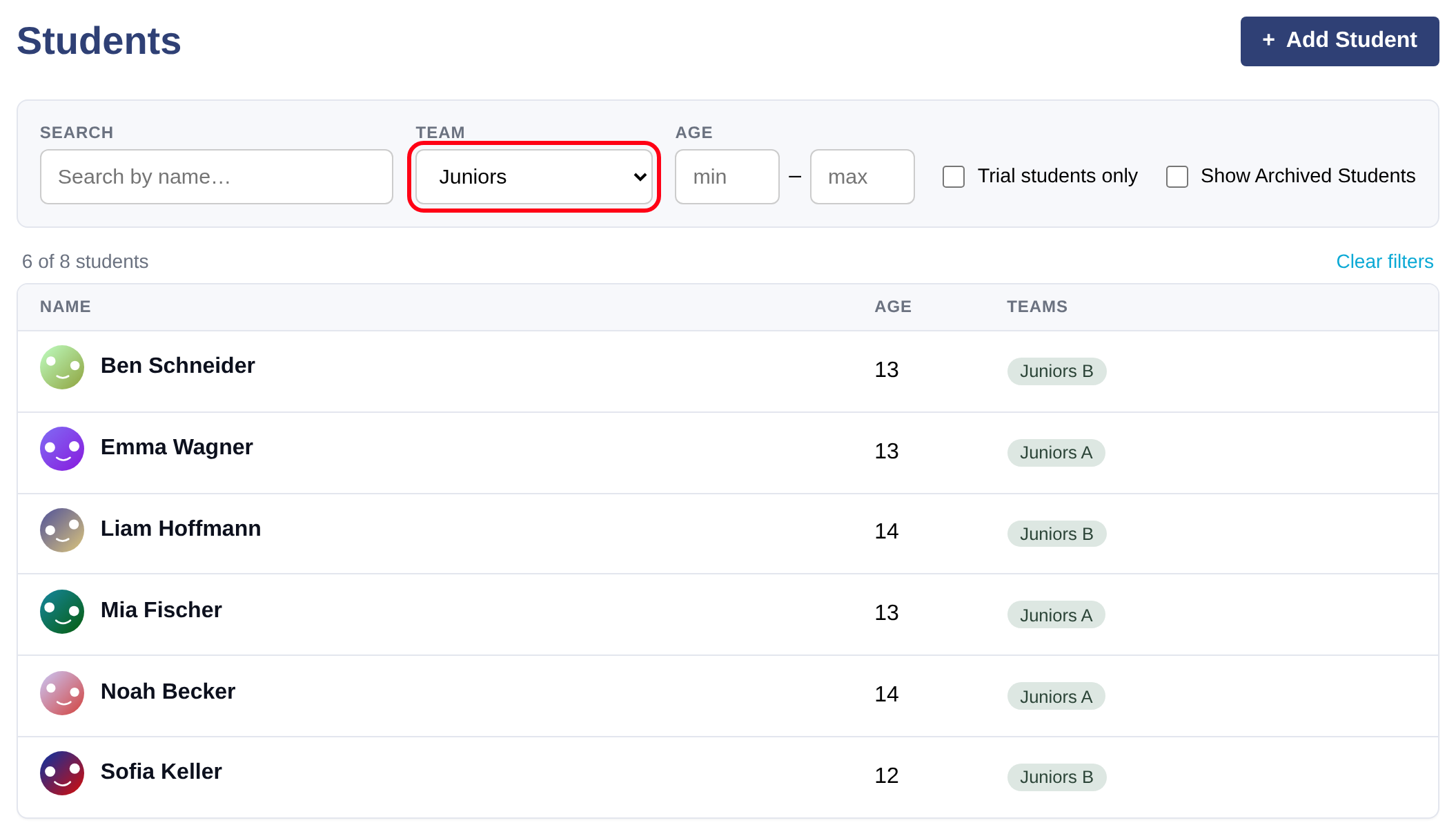
The student list can be narrowed by name, by team and by age. Filtering by a team also lists the students of its child teams.
A student's page shows their details, their attendance over the past year, their teams, absences, results and comments. Missing details, such as a birthday, are flagged on the page and on attendance lists. To hand a student everything stored about them, export their data.
Contact details
On the student page, choose Edit Student. Under Contact details, Add contact adds a phone number, email address, postal address or link, each with an optional note such as whose number it is.

Record an absence
When you know in advance that a student will be away, for a holiday, a camp or an injury, record an absence instead of excusing them event by event:
- On the student page, choose Add absence.
- Enter From and, if known, Until. Leave it empty when the end is not known yet, e.g. for an injury.
- Optionally enter a Reason and save.
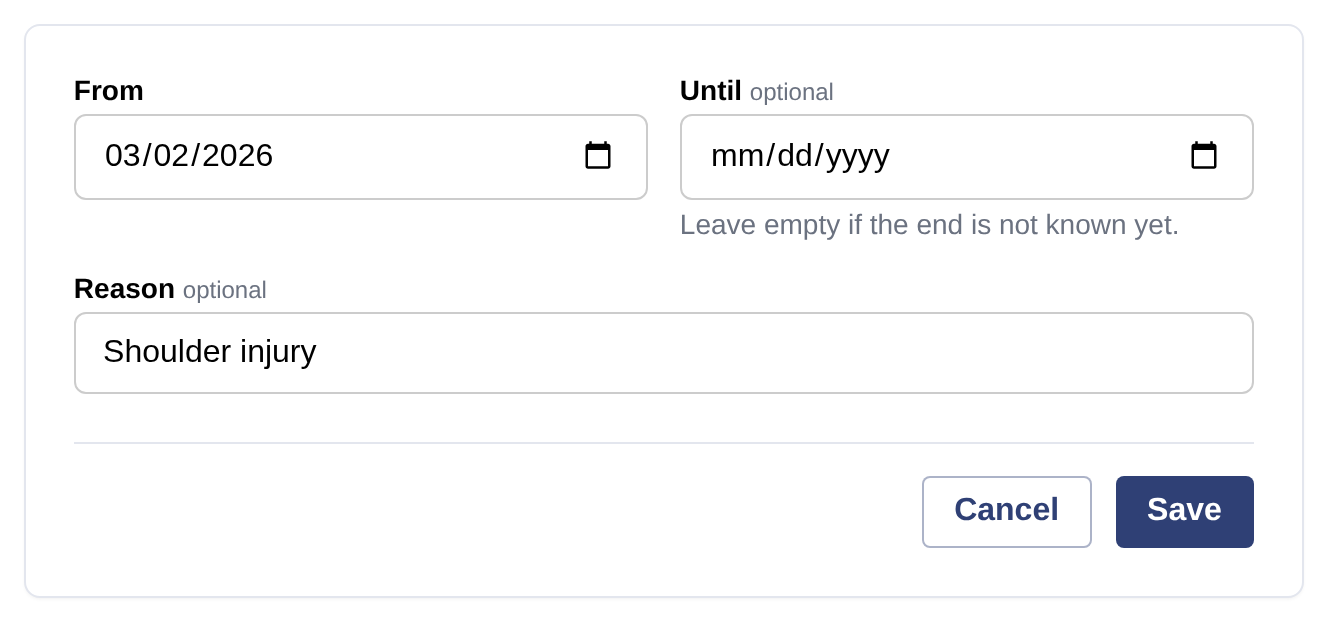
The student is now excused at every event of their teams in that period, also at events created later, and the attendance list shows the reason. If they turn up after all, mark them present on that event: a status set by hand always wins over the absence. When you change or delete the absence, only the statuses it set itself are updated.
The student page lists the absences as current, upcoming or past.

Comments
Under Comments on the student page, users note observations and agreements, e.g. "Swims with glasses from March" or "Moves to the Masters after the summer". Choose New Comment, write and save. The toolbar above the text formats it (bold, lists, links, callouts, …) and works with a phone's keyboard open; Edit as text switches to the Markdown text.
Comments are shared: every member of the organisation sees them and can change or delete any comment, not only their own.
Archive or delete a student
When a student leaves, edit them and tick Archived. They disappear from the student list, team rosters, the calendar's birthdays and the attendance lists of events where they have no status, but everything recorded about them stays: events with their attendance keep showing them, marked as archived. To see them again, tick Show Archived Students in the student list; clearing the mark brings them back everywhere.
Delete Student hides the student for good, for example one added by mistake. Prefer archiving for students who simply left.
See also
- Teams – Group students and users into teams, and nest teams to mirror your club's structure.
- Record attendance – Mark students present, excused or unexcused at an event, and spot students who keep missing.
- Record results – Enter times and distances at an event, quickly for a whole group or one by one with splits, and follow each student's progress.
- Export a student's data – Download everything TeamKit stores about one student as a JSON file.