Hour report
The hour report adds up, per user, the events they were assigned to: a basis for paying your staff or simply for seeing who carries the load. Every member can see it, for all users.
The overview
Open Hour report: it starts with your own report. Choose Overview of all members for everyone. The report shows the current month; choose another Start Date and End Date and Show, or step through the months.
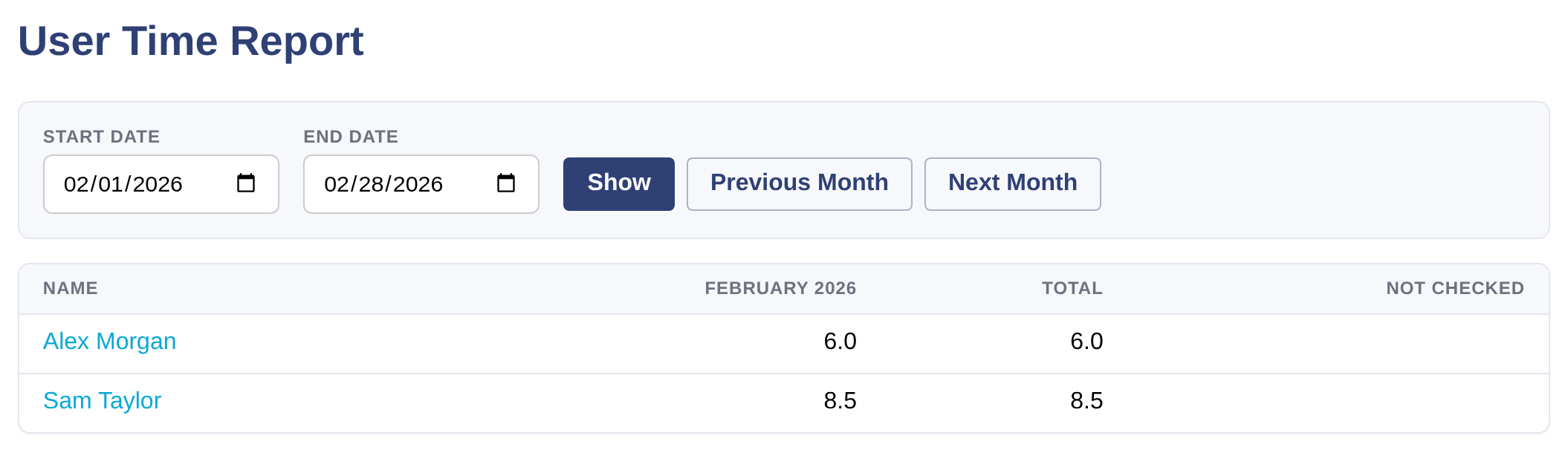
For each user, the report shows the hours per month and in total:
- every event they are assigned to counts with its duration;
- where two of their events overlap, the overlapping time counts once;
- deleted events do not count;
- users who left the organisation still appear for their past events.
The column Not checked shows how many of those hours come from events where nobody has confirmed yet who led them. The list below names these events: open each one, fix its users if needed and confirm them (see Events).
The events of one user
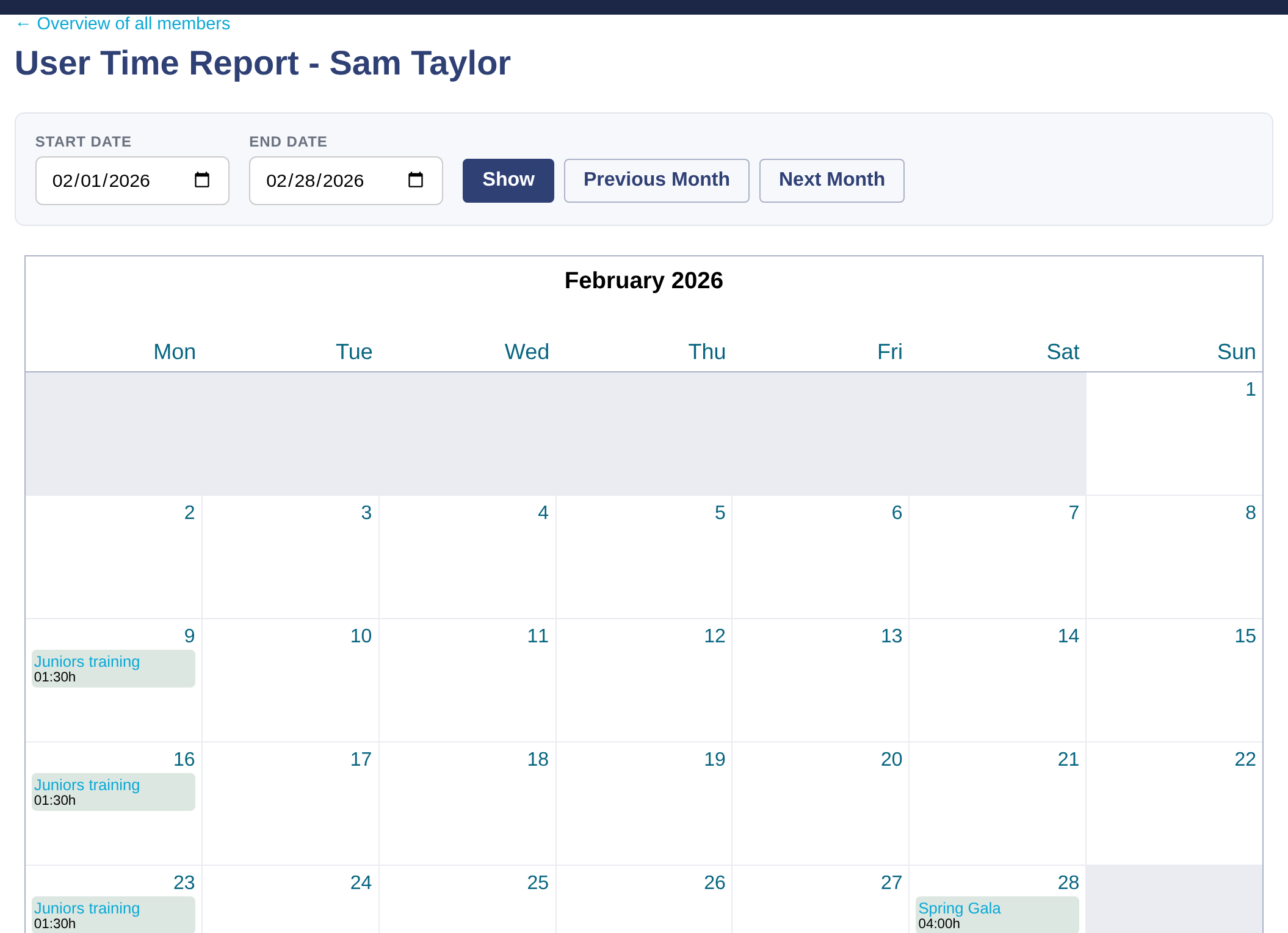
Choose a user's name in the overview to see the events that make up their hours, with start, duration and any credited duration, on a calendar of the period. Each event links to its page. Click a day on the calendar to open a popup listing that day's events; on a phone, where the calendar shows only a dot per event, this is how you see them.
Credit a different duration
Some events should not count with their duration: a meet where the user also prepared the day before, or a training they attended without being paid. On the event, open Credited duration and enter the hours for that user:
06:00,6,6.0or6,0: the event counts 6 hours for this user;00:00: the user was there, but the event counts no hours;- empty: the event's duration counts.

A credited duration always counts in full, also when it overlaps another event of the same user. It stays when the event's duration changes and is removed when the user is taken off the event.
See also
- Events and the calendar – Plan events from your timetable or by hand, find the ones that need attention and confirm who led them.
- Timetable – Define your weekly trainings once, with their teams and users, and create events from them in the calendar.
- Invite members – Share an invitation link so others can join your organisation, and remove members who have left.