Timetable
The timetable holds everything that happens every week, like your regular trainings. Each timetable slot has a weekday, a start time, a duration, and the teams and users that take part. From the slots, the calendar shows each week's trainings, and one click turns one into an event.
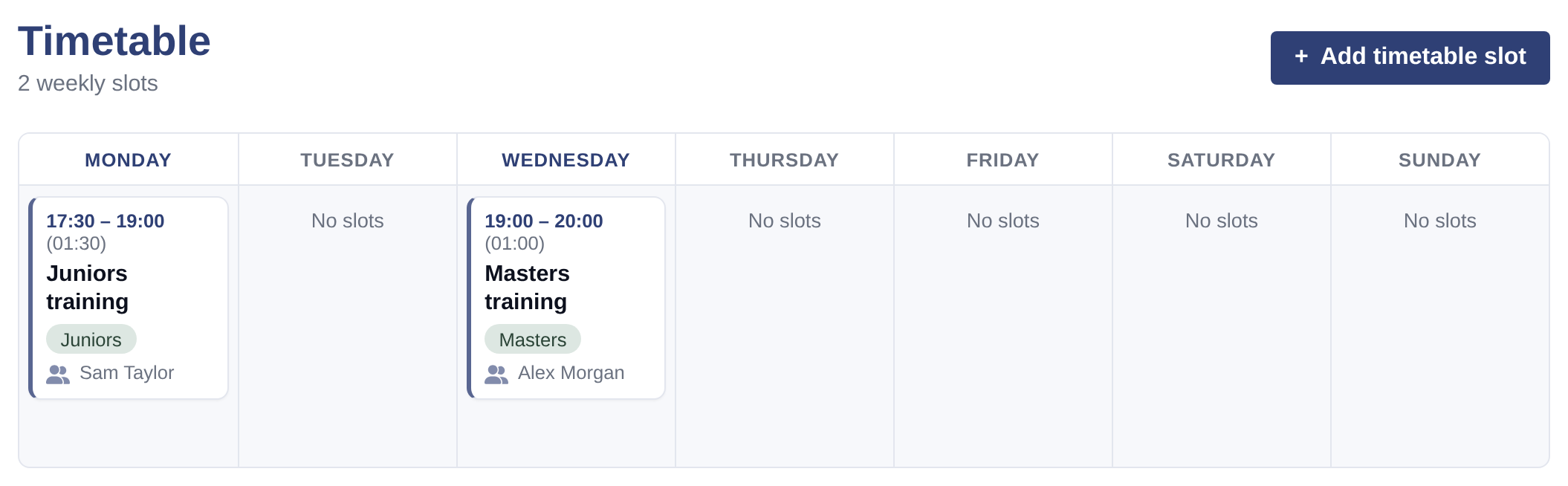
Add a timetable slot
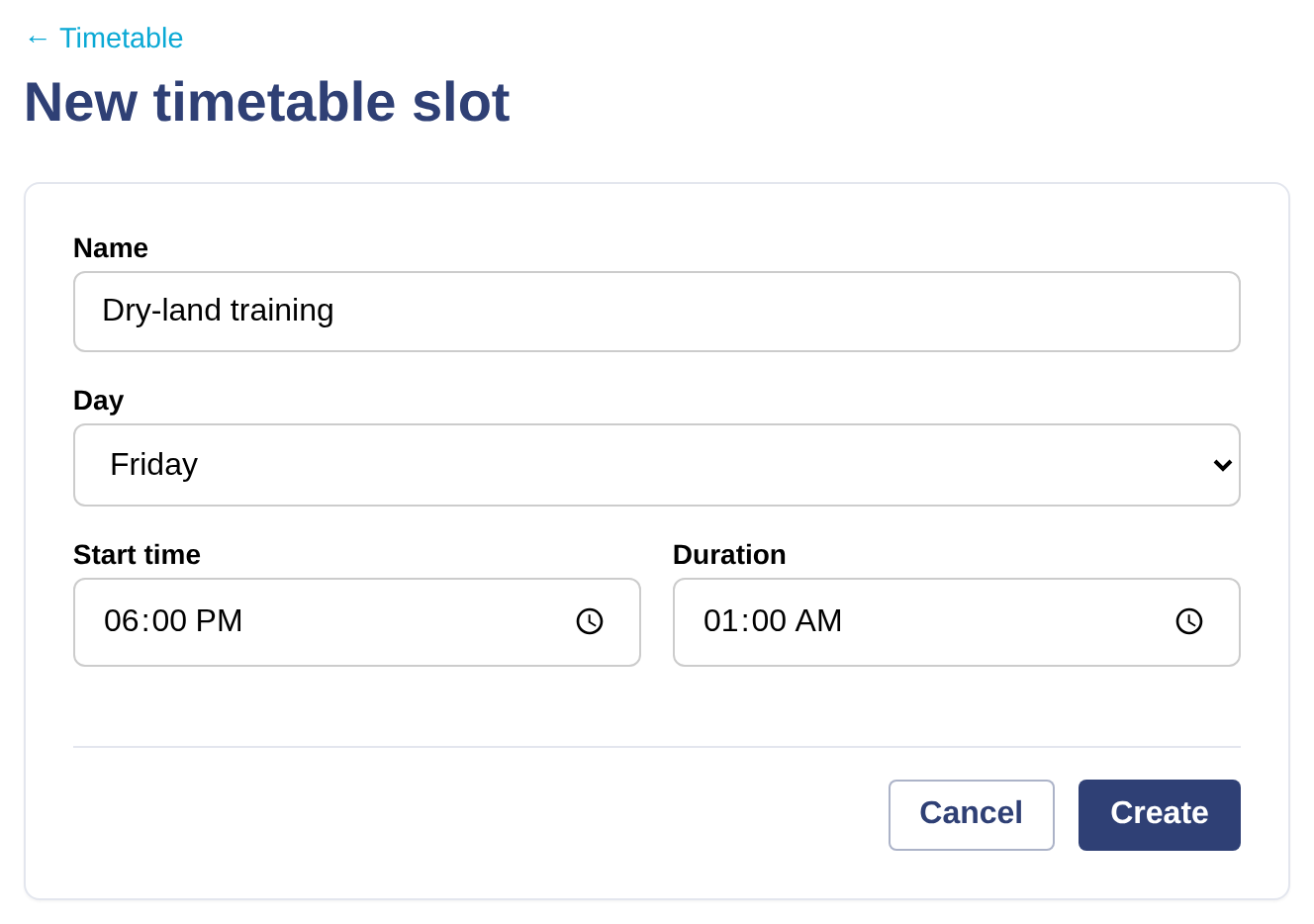
- Open Timetable and choose Add timetable slot.
- Enter the Name, the Day, the Start time and the Duration (one hour unless you change it).
- Choose Create.
Assign teams and users
Open the slot from the timetable. Below its details, add the users who lead it with Add user and the teams that take part with Add team.
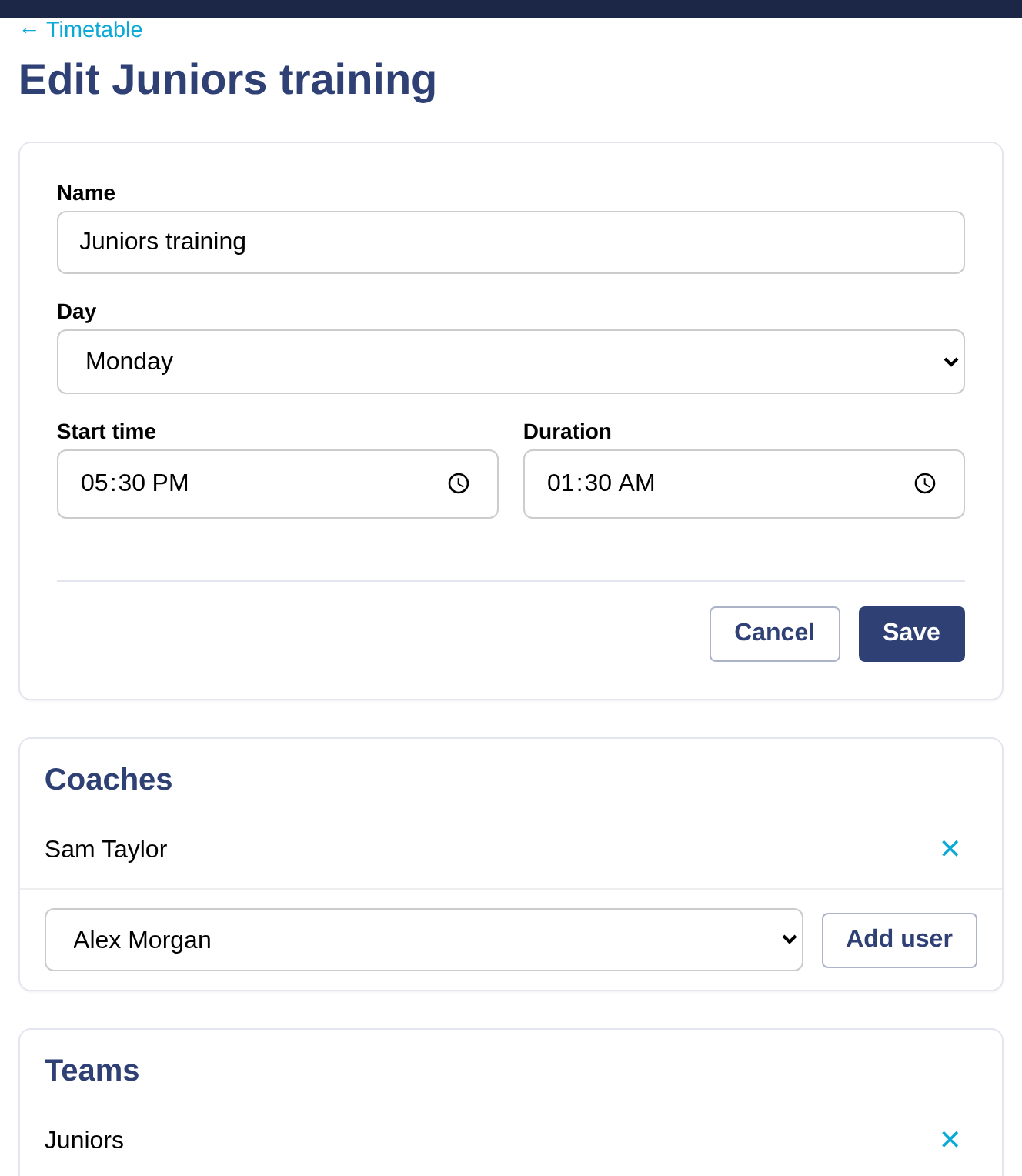
Every event created from the slot starts with these users and teams, so its attendance list is ready and the hour report knows who led it. You can still change both on each event.
Change or delete a slot
Changes to a slot apply to events created from it afterwards. Events that already exist keep their own name, time, users and teams, so past weeks stay as they were. Delete timetable slot removes the slot from the timetable and the calendar; its events stay.
See also
- Events and the calendar – Plan events from your timetable or by hand, find the ones that need attention and confirm who led them.
- Teams – Group students and users into teams, and nest teams to mirror your club's structure.
- Hour report – See how many hours each user spent on events, credit special events differently and check who led which event.