Invite members
Everyone who looks after teams or leads events needs their own account and a membership in your organisation. You add them with an invitation link.
Create an invitation link
- Open Settings and choose Invitations.
- Choose New invitation.
- Copy the link and send it to the new member, e.g. by chat or email.
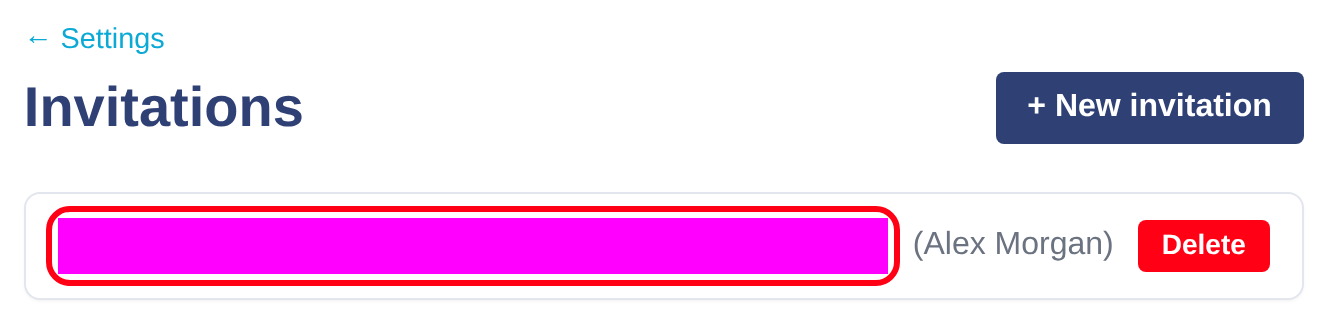
Whoever opens the link and signs in sees which organisation it is for and joins it with Join. People without an account register first and then open the link again.
An invitation link:
- works for any number of people and does not expire. One link for your whole staff is enough;
- can be created and deleted by every member, not only by owners. The list shows who created each link;
- stops working as soon as it is deleted with Delete. Members who already joined stay.
Treat the link like a key: anyone who has it can join and see all students, teams and events of the organisation. Delete it once everyone has joined, and create a new one when you need it again.
Members and their roles
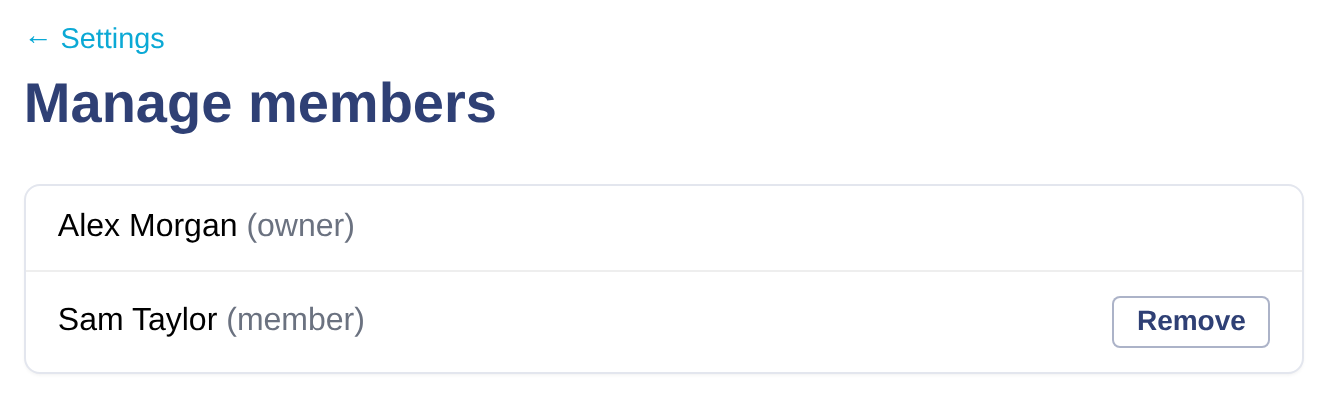
Settings → Manage members lists every member with their role:
- owner: whoever created the organisation. Owners can remove members.
- member: everyone who joined with a link. Members can do everything else: manage students, teams, the timetable, events, results and invitation links.
Remove a member
When someone leaves, an owner chooses Remove next to their name. They lose access to the organisation at once and are taken off its teams and timetable slots, so events created later no longer list them.
Events they were assigned to stay unchanged, so the hour report still counts their past hours. Take them off upcoming events by hand.
Removing a member does not delete any invitation link. If they still have a link, they could join again: delete the links they know.
See also
- Create an organisation – Found an organisation for your club or school and become its owner.
- Teams – Group students and users into teams, and nest teams to mirror your club's structure.
- Hour report – See how many hours each user spent on events, credit special events differently and check who led which event.