Your account
Your account belongs to you, not to an organisation: the same name, email address, password and language apply in every organisation you are a member of. Open Profile with the mascot at the end of the navigation bar.
Choose the language
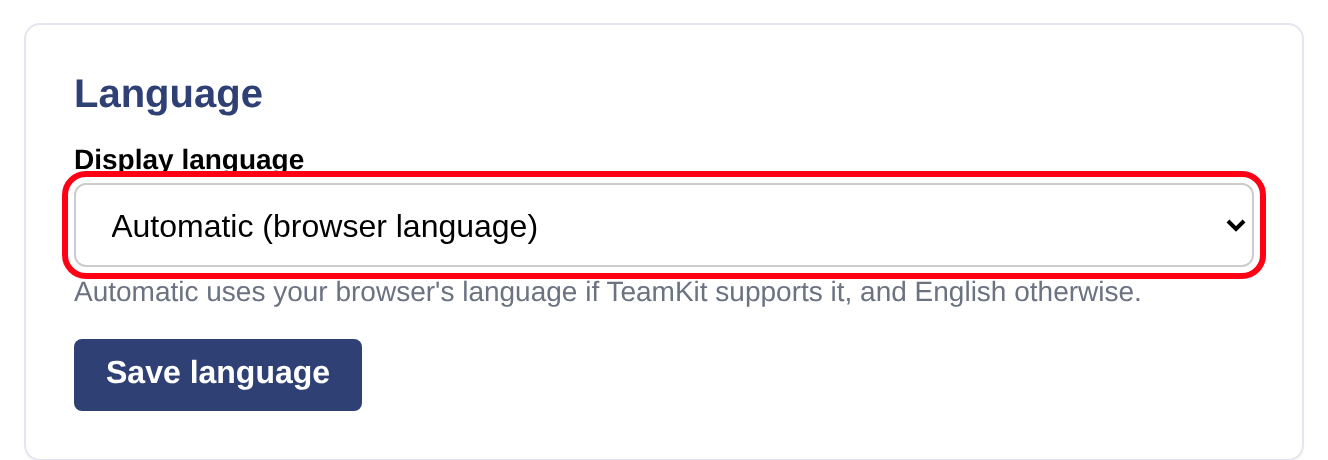
TeamKit is available in English and German. By default it uses your browser's language, and English if your browser asks for a language TeamKit does not support.
To choose one yourself, pick it under Display language and choose Save language. The choice is stored in your account, so it applies on every device you sign in on. To follow the browser again, choose Automatic (browser language).
Change your password
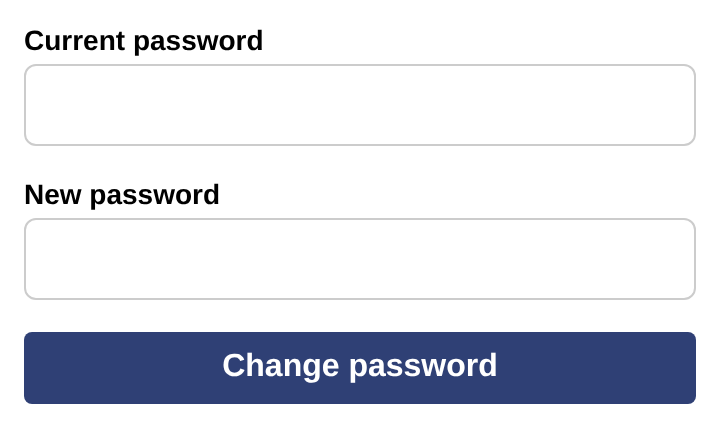
- On your profile, choose Change password.
- Enter your Current password and your New password.
- Choose Change password.
Changing the password signs you out everywhere: on this device and on every other phone or computer where you were signed in. Sign in again with the new password. If someone else may know your old password, this also locks them out.
Forgot your password? Choose Forgot password? on the sign-in page and follow the link TeamKit emails you.
Change your email address
- Under Email, enter the New email address and your Current password.
- Choose Send confirmation link.
- Open the link TeamKit sends to the new address.
Until you open the link, your current address keeps working and your profile shows the new one as pending. Choose Cancel there to drop the change. After the change, sign in with the new address.
How long you stay signed in
You don't have to sign in on every visit: as long as you come back within 30 days, TeamKit keeps you signed in on that device, and each visit starts the 30 days again. After 30 days without a visit, you sign in again.
To end your session on a shared computer, choose Logout on your profile.
See also
- Create an organisation – Found an organisation for your club or school and become its owner.
- Invite members – Share an invitation link so others can join your organisation, and remove members who have left.