Record attendance
Every event has an attendance list: the students of its teams, child teams included, plus any students you add yourself. Each student appears once.
Mark attendance
Open the event. Next to each student, choose:
- ✔ Present
- 🤒 Excused
- ❌ Unexcused
- ➖ to clear the status again
Each choice is saved at once; the counts next to Students follow. A student without a status yet is counted nowhere, so you see whose attendance is still missing.
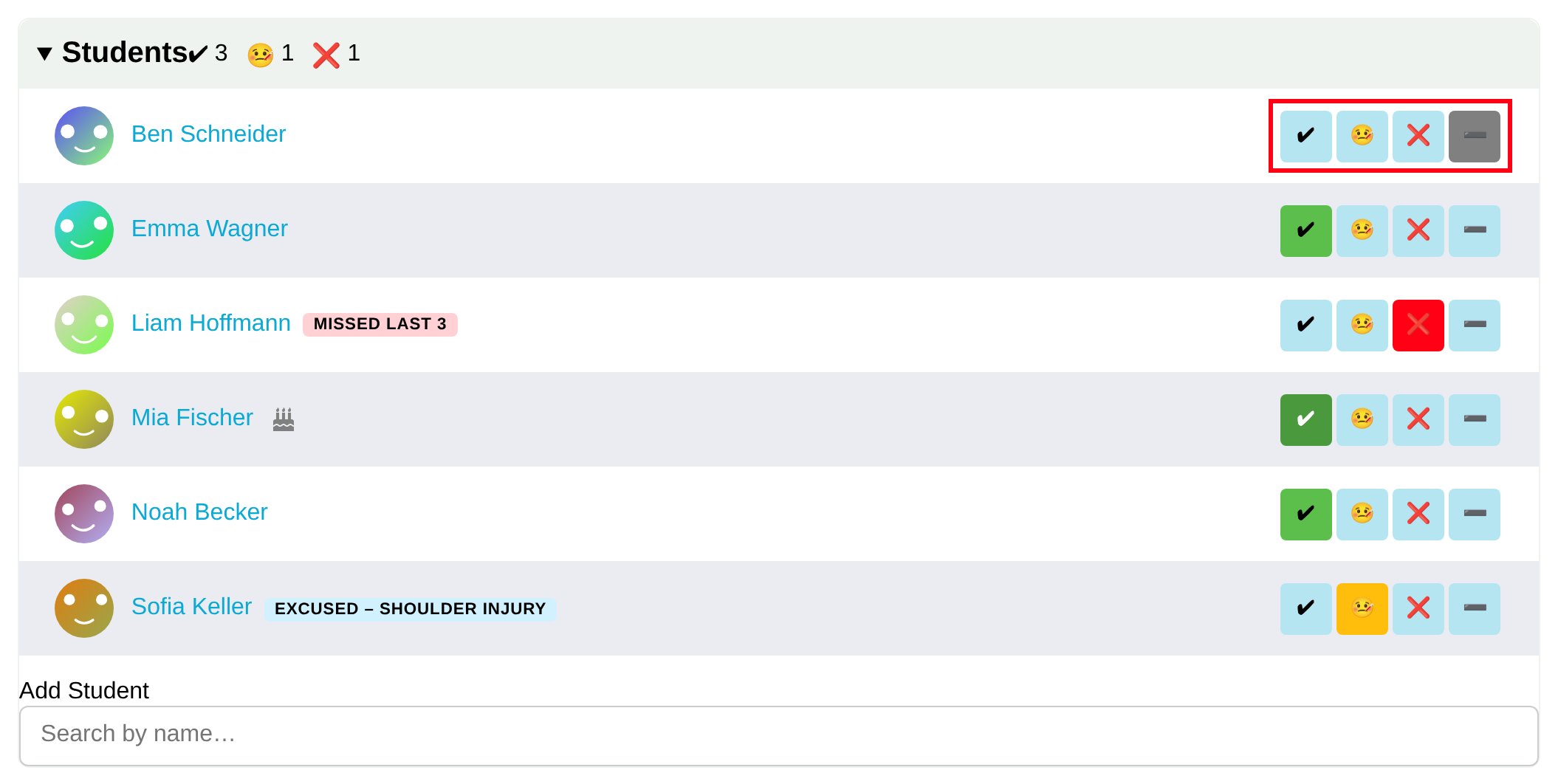
The list also shows:
- absences: a student with an absence in the period is excused automatically, with the reason. Choose another status if they came after all; clearing it applies the absence again;
- warnings: a red or yellow badge marks students who missed their last 3 or more events, or 4 of their last 6. Red means an unexcused absence is part of it, yellow that all were excused. The badge links to the student;
- birthdays in the week of the event, and missing student details.
Add a student who is not on the list
When someone from another team joins in, type part of their name under Add Student and pick them. They are added as present. To take them off the list again, clear their status with ➖.
Add someone who is new
When someone new shows up, for example to try out, type their name under Add Student and choose Quick add student below the results. The button is there whenever you have typed something, also when another student has the same name. The form to add a student opens with Trial student and the event's teams already ticked; change them if needed. After saving, the new student is on the event as present, whatever teams you kept, and you are back on the event.
Archived students
Archived students stay on the attendance list of every event where their attendance is recorded (present, excused or unexcused), marked as archived. They are no longer added through the event's teams, so events where they have no status don't show them. Excused statuses set automatically by an absence are removed while the student is archived and come back when they are unarchived.
See also
- Events and the calendar – Plan events from your timetable or by hand, find the ones that need attention and confirm who led them.
- Students – Keep your students' details, teams and contact details, track trial students, record absences and archive students who have left.
- Teams – Group students and users into teams, and nest teams to mirror your club's structure.