Sports and metrics
Before you record results, TeamKit needs to know what you measure. A metric is one thing you measure, such as "100 m freestyle (25 m pool)" or "long jump". Metrics can be grouped by sport.
Open Settings → Sports & metrics. Global metrics are provided for every organisation and cannot be changed; below them you manage your organisation's own. Every member can do this.
Create a metric
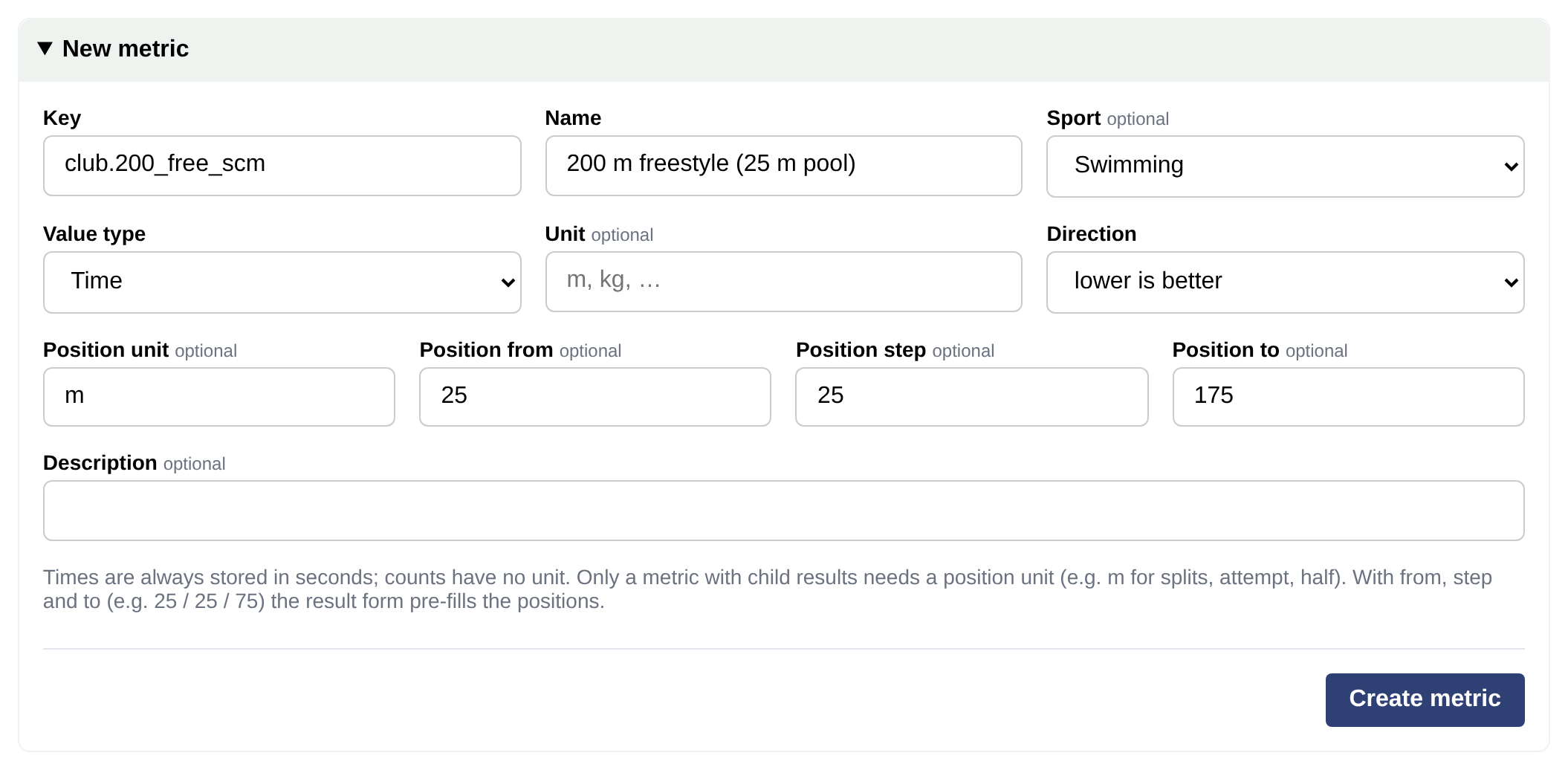
Under Metrics, open New metric and enter:
- Key: a unique technical name of lowercase
letters, digits,
_and dots, e.g.club.200_free_scm. Imports match metrics by it; - Name, and optionally the Sport (create sports in the same place, under Sports);
- Value type: Time
(entered as
1:04.34, stored in seconds), Number with a Unit such asm, or Count for whole numbers; - Direction: whether lower or higher values are better. This decides personal bests; choose no personal best for values that are not a performance.
Splits, attempts and halves
A result can have parts: the split times of a race, the attempts of a long
jump, the halves of a game. Give the metric a
Position unit (e.g. m, attempt) and optionally
a range: for a 200 m race in a 25 m pool, from 25 every 25 up to 175. The
result form then offers one row per split. Only the result itself counts for
personal bests.
Put conditions that make results incomparable into the metric itself: a time in a 25 m pool is not a time in a 50 m pool, so they are two metrics.
Comparison groups
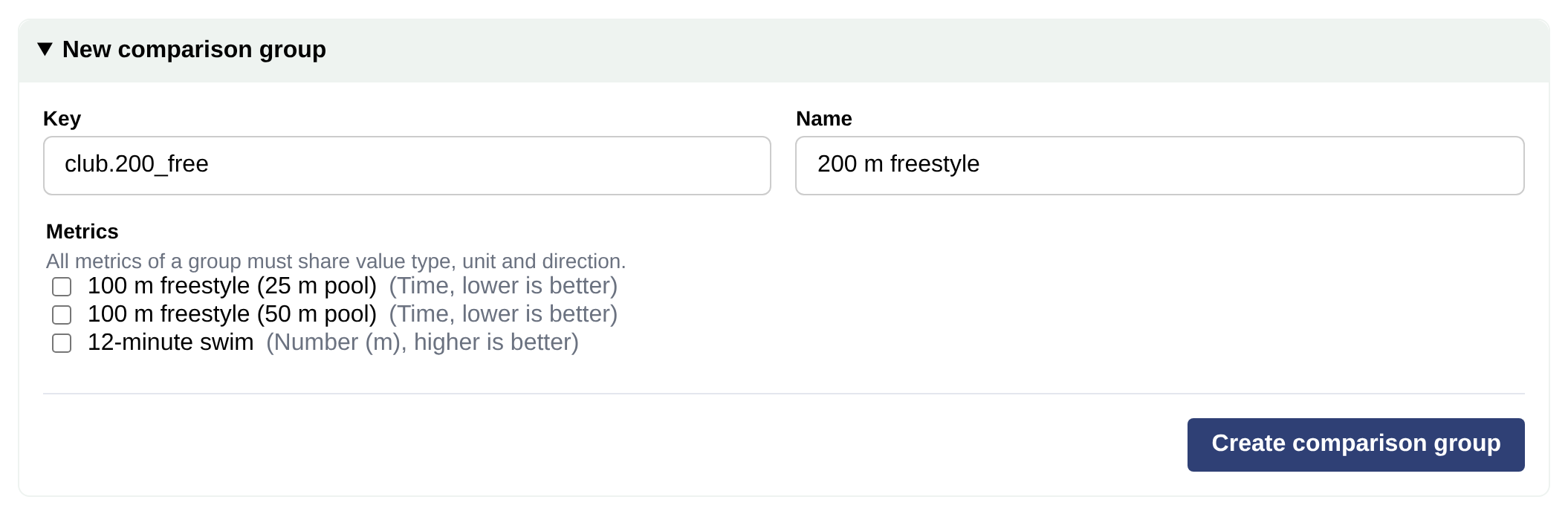
A comparison group shows metrics side by side that measure the same thing under different conditions, such as 100 m freestyle in a 25 m and a 50 m pool. The student's page then draws them in one chart, while personal bests stay per metric.
Under Comparison groups, open New comparison group, enter key and name, and tick the metrics. They must share value type, unit and direction.
Change or delete
Every field of your own metrics can be changed later. Recorded values are not converted, and TeamKit refuses changes that would no longer fit them, such as turning a metric with decimal values into a count. Deleting a metric hides it from new results; recorded results keep it.
See also
- Record results – Enter times and distances at an event, quickly for a whole group or one by one with splits, and follow each student's progress.
- Import results – Bring results from spreadsheets, other apps or swim meet software into TeamKit.
- Lap counter – Count the laps of many students at once on your phone and save their distances as results.