Events and the calendar
An event is one occasion on one date: a training, a meet, a camp day. Events carry the attendance, the results and the hours of the users who led them.
The calendar
Events shows a month, week or day with:
- the events;
- the upcoming weeks of every timetable slot, until an event exists for them;
- the students' birthdays.
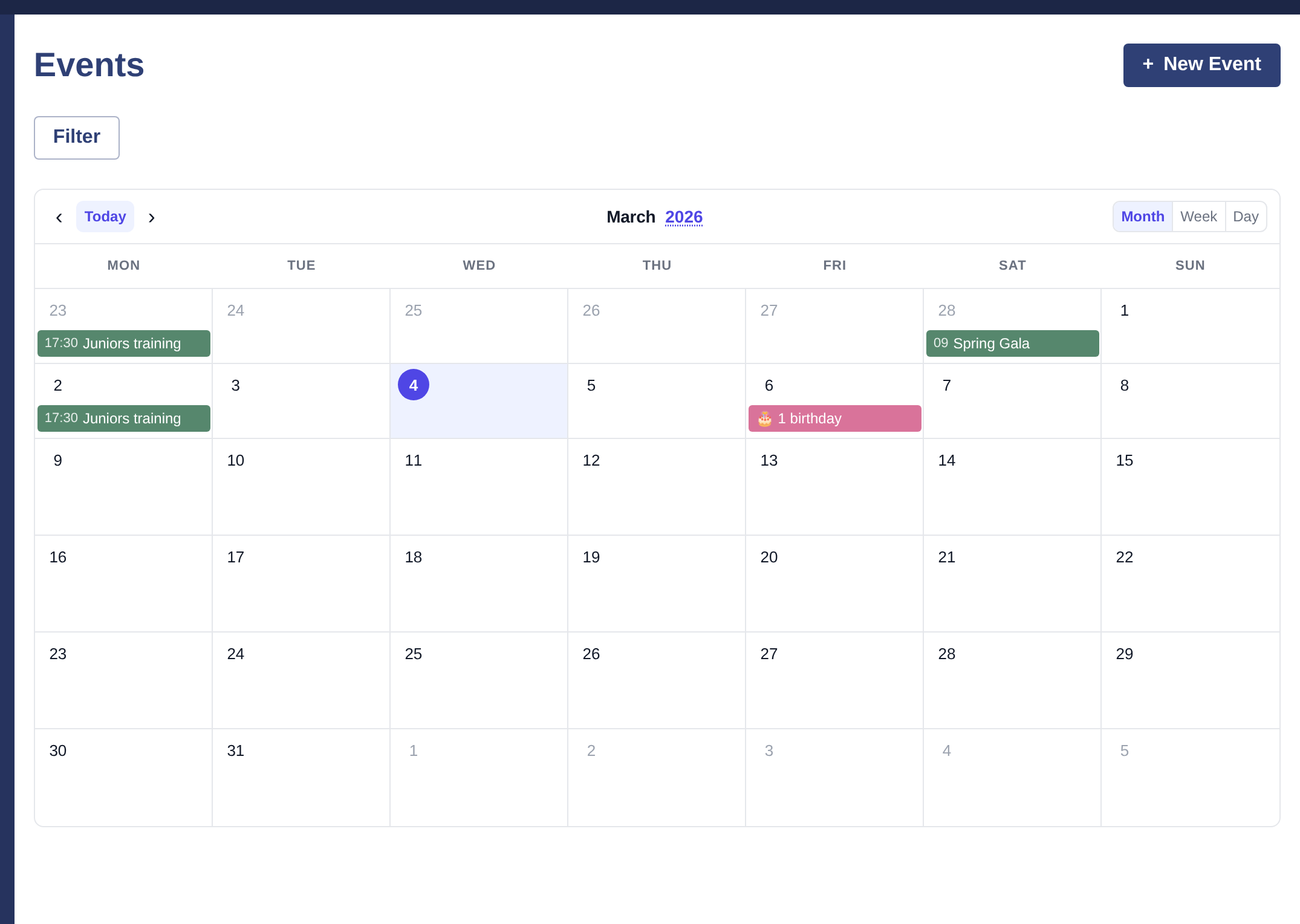
A day with birthdays shows one entry such as "🎂 2 birthdays". Choose it to see a page listing the students whose birthday falls on that date, each linking to their page.
The dashboard shows today's and this week's events and slots at a glance.
Create an event
- From the timetable: click a timetable slot in the calendar. TeamKit creates the event for that day with the slot's name, time, duration, users and teams. Clicking the same slot again opens the existing event; there is never a second one for the same slot and day.
- By hand, for anything outside the timetable such as a meet: choose New Event, or click an empty spot on a day in the calendar to start with that date. Enter name, start and duration, and save. Then add teams and users on the event.
On the event
The event page holds everything about the occasion:
- Coaches: the users who lead it, for the hour report;
- Groups: the teams; their students make up the attendance list;
- Students: the attendance list itself;
- Results: results recorded at the event;
- Notes / Comments: notes for everyone. The toolbar above the text formats it (bold, lists, links, callouts, …); Edit as text switches to the Markdown text.
To change the name, start or duration, or to move the event to another day, choose Edit. The edit page also deletes the event; deleted events no longer count in the hour report.
Confirm who led the event
Once an event has started, it asks whether the users listed were really there. Check the list, fix it if someone stood in for someone else, and choose Yes, confirm.
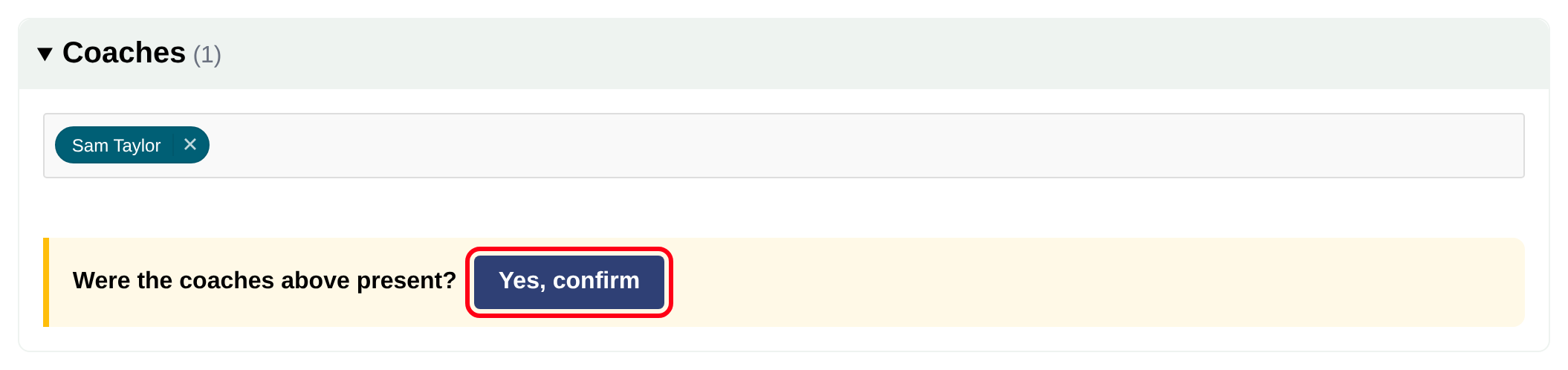
Changing the users or a credited duration after the start confirms them too. Until then, the hour report marks the event as Not checked, so wrong hours are found before they are paid.
Find what needs attention
Filter narrows the calendar by Team (child teams included), User and name, and hides events, timetable slots or birthdays. Under Needs attention it finds:
- Users not confirmed: started events nobody confirmed yet;
- Attendance not recorded: past events without any attendance;
- No users assigned: upcoming events nobody leads.
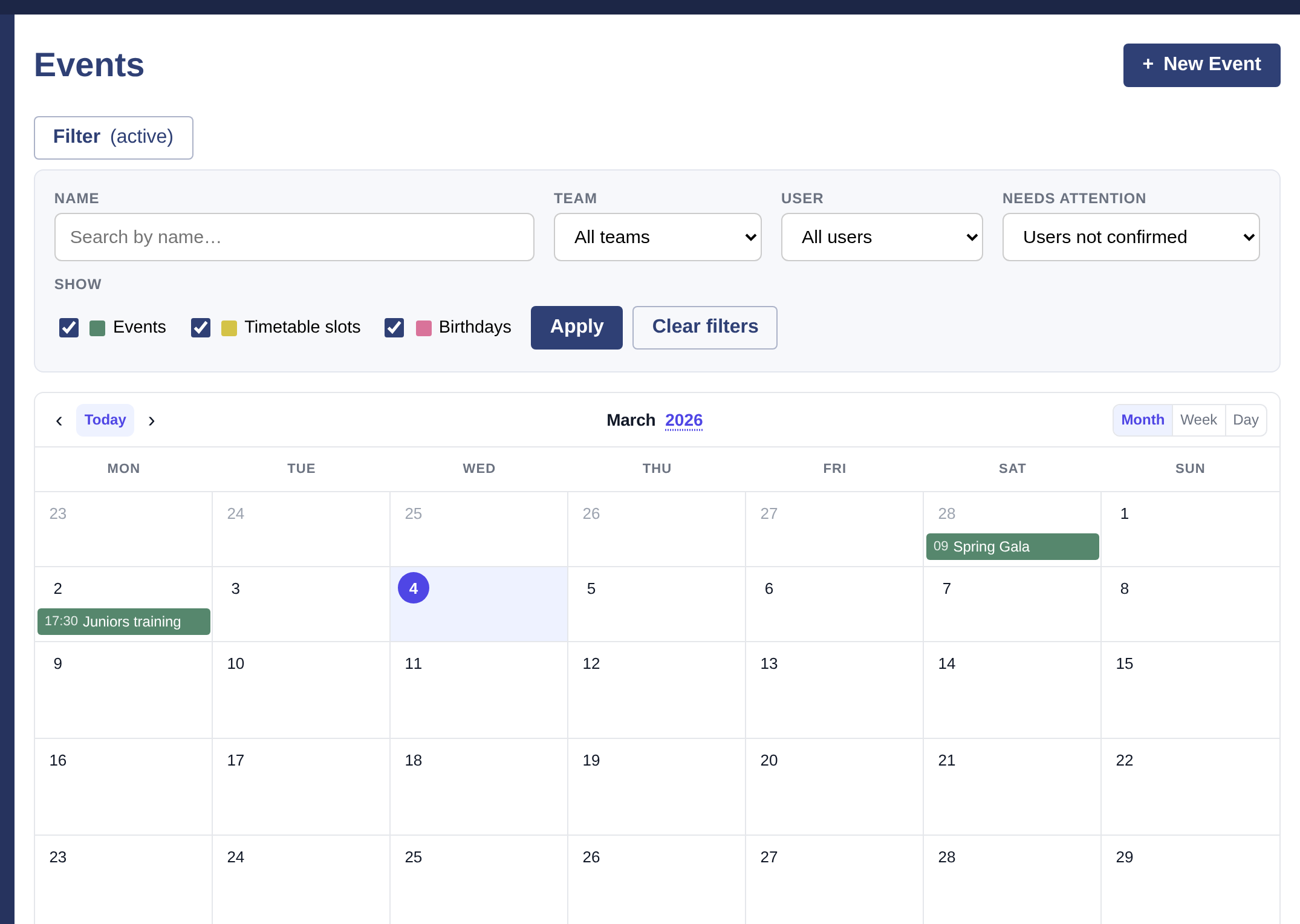
The filter is part of the address, so you can bookmark a filtered calendar.
See also
- Timetable – Define your weekly trainings once, with their teams and users, and create events from them in the calendar.
- Record attendance – Mark students present, excused or unexcused at an event, and spot students who keep missing.
- Hour report – See how many hours each user spent on events, credit special events differently and check who led which event.